


News & trends
Leaving ActivTrak? 6 questions to ask before you switch
Thinking of leaving ActivTrak? Six questions on recorded data, screenshots, employee visibility, productivity labels, pricing terms and reporting to…
Worktivity Team8 min read
The right Insightful alternative is the tool that records working time in a way your employees will accept and turns that time into the numbers your business runs on. For a remote or hybrid team that sells time to clients, those numbers are hours per project, cost per project and what each hour can be billed for. If you only need a shortlist of tools, start with our Insightful alternatives page. This guide covers what to check before you move.
A workforce analytics tool is software that records how working time is spent and turns it into reports. Insightful sits in that category, and so do most of the tools you will see next to it on comparison sites. The five checks below separate the tools that fit a team of 10 to 200 people from the ones that do not: what is recorded, how screenshots work, what employees see, whether hours turn into project cost, and whether building your own tracker would be the better option.
This guide is written for owners of agencies, software houses and consultancies with remote or hybrid staff. It describes what Worktivity does according to its own help centre and where Worktivity stops. It does not quote prices or features for Insightful or other vendors, because those change. Check each vendor's own pricing and documentation pages on the day you decide.
The first check for any Insightful alternative is a written list of what the desktop app records. A vendor that cannot show that list on one page is a vendor your team will have trouble trusting.
Worktivity publishes the list in its help centre. Nothing is recorded until an employee starts a shift, and recording stops when the shift ends. While the shift runs, the Worktivity desktop app sends one record per minute: status (working, on a break or idle), activity level, the application in the foreground, the site host if that application is a browser, the number of connected displays, a screenshot if the organization has screenshots on, and the project, task and work note the employee selected. Activity level is a count of seconds with keyboard or mouse input, never the keys themselves.
Worktivity never collects typed text, window titles, full web addresses, clipboard contents, files, the camera or the microphone. The limit that follows is worth knowing before you switch: Worktivity can tell you which application was open, but not which document. The full list is in What does Worktivity collect, and what does it not? Ask every tool on your shortlist for the equivalent page.
Screenshots decide more rollouts than any other feature. The useful question is not whether a tool takes screenshots, but who decides and whether a screenshot can be unreadable.
In Worktivity, screenshots are optional. The organization chooses between off, blurred and unblurred. Blurring happens on the employee's computer at the moment of capture, before anything is uploaded, so a readable copy never reaches the server. Teams that handle client records, contracts or medical data usually choose blurred. The setup is in Can I blur screenshots so content is not readable?
When you test an Insightful alternative, ask three things: can screenshots be turned off completely, can they be blurred before upload, and does the plan you need include them or charge for them separately.
An employee who can see the data recorded about them reads the tool as a shared record, not as surveillance. That is the most practical answer to the concern that people do not want to be tracked.
In Worktivity, every employee has a My activities screen in the sidebar. My activities shows tracked, working, break and idle time, activity level, and the application behind every recorded minute. The screen needs no permission switch and never shows anybody else's data. How it works is described in Where do I see my own working day?
Ask each alternative the same question: does the employee see the same numbers their manager sees?
An agency that sells time needs more than a picture of activity. The agency needs to know which project earned money last month and which one did not, because that answer decides the next quote.
Worktivity turns the same recorded minutes into a cost view. When employees pick a project and task before they start work, the Task insights report shows, per task and project, the working hours, what those hours cost from each person's hourly pay rate, what they can be billed for from the hourly bill rate, and the profit between the two. The rate is stamped on each minute when it is recorded, so changing a rate later does not rewrite what past work cost. The columns are explained in What is in Task insights?
Worktivity also has a Cost management section with a payroll calculator and customer invoices. Three limits apply. Cost management is visible only to owners and co-owners. The section depends on a module and on your plan. Invoice lines are entered by you, with a name, a price and a quantity for each line, as described in How do I create an invoice for a customer? Without hourly rates set on the Employees screen, every cost figure stays at zero.
To test any alternative on this point, load one finished project and ask the tool for its cost and its billable value. If the answer needs a spreadsheet export and an afternoon, the tool is measuring activity, not project economics.
Some teams leaving a workforce analytics tool consider building their own system with AI and a spreadsheet. The idea is reasonable for part of the job and expensive for the rest, and it is worth separating the two.
The reasonable part is analysis. Once time data exists in a clean export, an AI assistant can summarise it, compare weeks and draft a report. The expensive part is collection. A desktop recorder has to run on Windows, macOS and Linux, request the right operating system permissions, handle sleep, offline periods and idle time, update itself, and enforce privacy rules such as never sending window titles. Each of those is ongoing maintenance, not a one-time build. Worktivity's help centre has separate articles on macOS permissions and on what happens when a computer goes offline, which shows how much of the work sits in edge cases.
If your team only needs hours typed in by hand, a manual timer may be enough and cheaper than both options. If you need automatic records, a build is a commitment to maintain a monitoring agent on every work computer. Put the maintenance hours in the comparison next to the subscription price.
A trial only tells you something if it answers your own question with your own data. Use these steps to compare an Insightful alternative against what you have today.
If you are also reviewing other workforce analytics tools, the six questions in Leaving ActivTrak? 6 questions to ask before you switch apply to an Insightful move as well.
A comparison that only lists strengths is not useful. These are the Worktivity limits that matter most when you leave a workforce analytics tool:
If your team is hybrid and sells time to clients, read how Social Station Agency keeps campaign hours visible across office and remote staff. Then load one real project into Worktivity's Task insights and see whether it answers your cost question. You can start a free trial of Worktivity and compare it with your current setup on your own data. Plan prices are on the Worktivity pricing page.
More from the same corner of the blog.
Thinking of leaving ActivTrak? Six questions on recorded data, screenshots, employee visibility, productivity labels, pricing terms and reporting to…

Worktivity now answers questions about your team, projects and time in plain language, and connects to ChatGPT, Claude and any MCP tool.
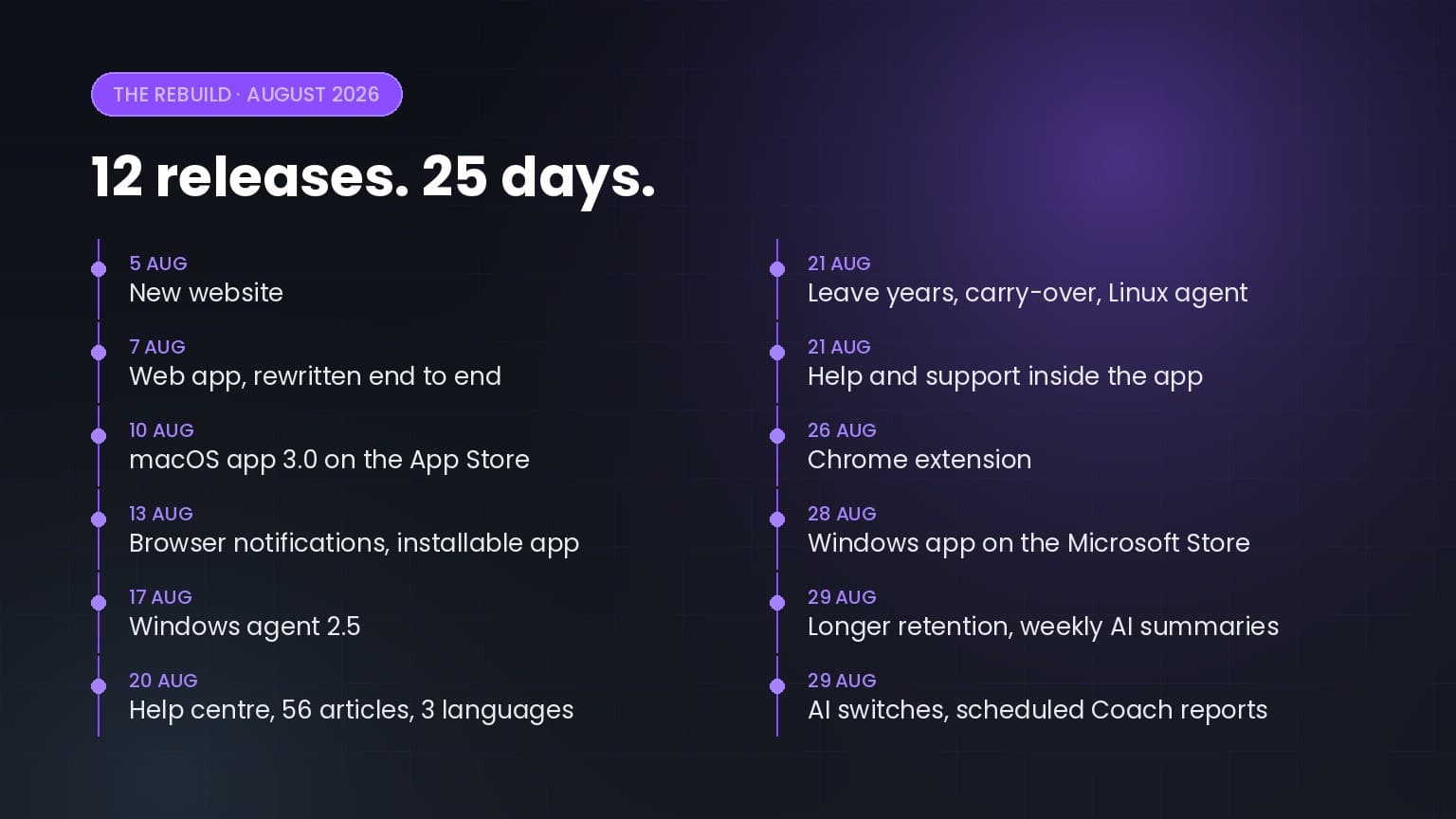
Twelve releases in twenty-five days: a rewritten web app, apps for macOS, Windows, Linux and Chrome, a help centre in three languages, and a…
Worktivity turns the activity your team already generates into a picture you can act on: automatic time tracking, productivity scores and payout-ready reports.
Free 14-day trial. No credit card required.