

Time tracking with screenshots you can stand behind
Screenshots on every plan, at an interval you choose, with blur and visible rules.
Some time trackers sell screenshots as an add-on. Worktivity records them on every plan, next to the application in front and the activity level of that minute, and you decide the interval, whether images are blurred and who can see them. Your organization switches screenshots on; nothing is captured until you do.
14-day free trial · No credit card required
What screenshot time tracking covers
Eight things the screenshot side of the product does.
Screenshots on every plan
Starter, Growth and Pro all record screenshots, and there is no cap on how many. What the plan changes is how often a capture can be taken and how long it is kept.
An interval you choose
Captures are taken every 1 to 60 minutes of recorded work. Your plan sets the shortest interval you can pick: every 5 minutes on Starter, every 3 on Growth and every minute on Pro.
Blur before upload
With blur on, the image is blurred on the employee's computer before upload. The readable version is never sent or stored, so there is nothing to un-blur later. Blur is included on Growth and Pro.
Context on every capture
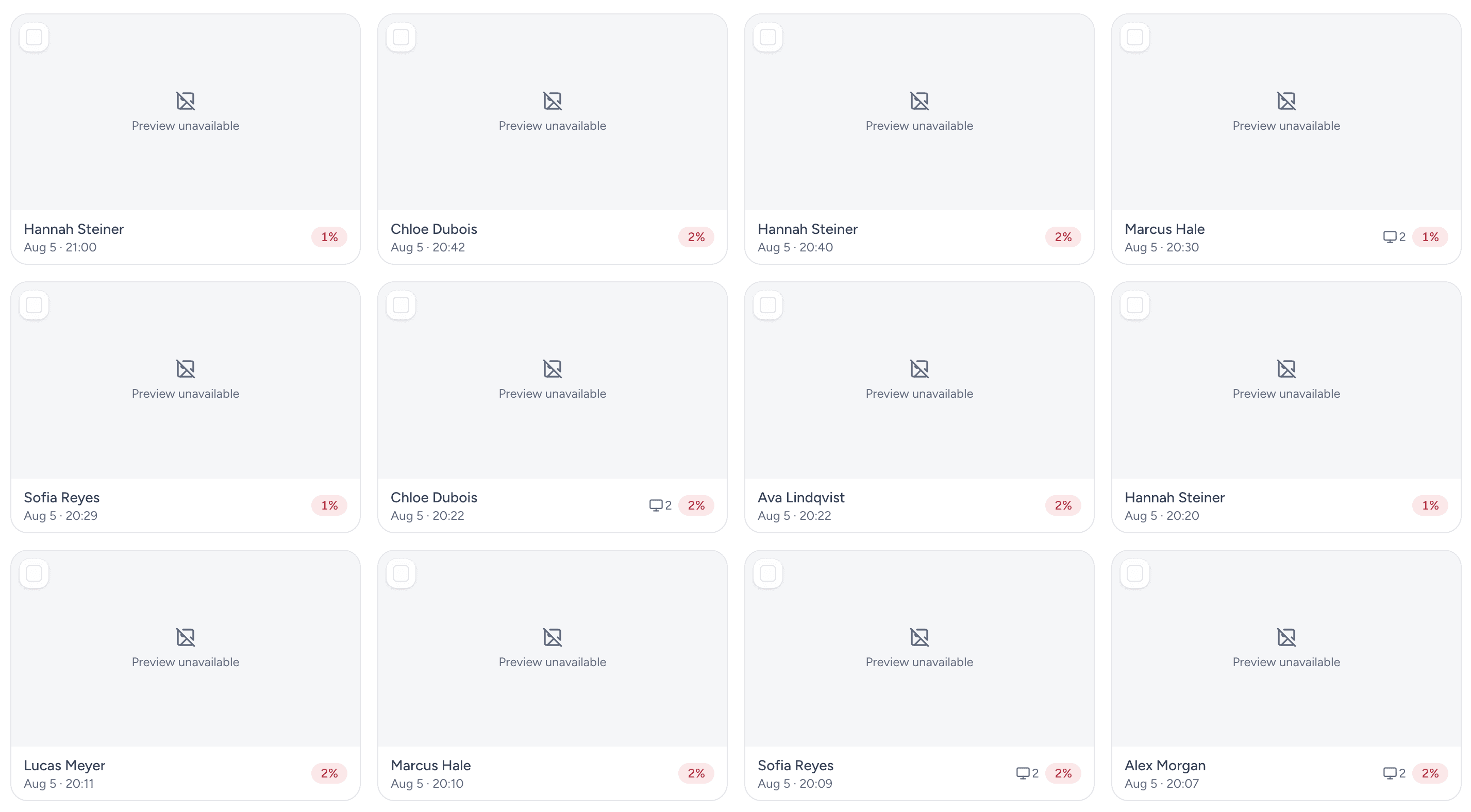
Each capture shows the person, the time, the application or site host in front, the activity level of that minute and an idle badge when the minute was idle.
Different rules for one person
The organization setting is the default. One person can have a different interval, blur or no screenshots at all through their own tracking settings.
Timelapse from the same captures
On Growth and Pro, Worktivity stitches captures into short timelapse videos, so a day can be reviewed in minutes instead of paged through as stills.
Clear rules on who sees what
Owners and co-owners see everyone, managers see their own team, and employees see their own captures only if you allow it. Deleting has its own permissions.
Off is a real option
Screenshots can be switched off for the whole organization or for one person. Time, activity and application records carry on without them.
Screenshot settings on each plan
Screenshots are on every plan. Interval, retention and blur are what change, and these figures come straight from the pricing page.
| Plan | Per user, per month | Shortest interval | Screenshots kept | Blur before upload |
|---|---|---|---|---|
| Starter | $3.99 monthly, $3.32 billed yearly | Every 5 minutes | 2 months | Not included |
| Growth | $5.99 monthly, $4.99 billed yearly | Every 3 minutes | 4 months | Included |
| Pro | $8.99 monthly, $7.49 billed yearly | Every minute | 6 months | Included |
Need a longer window? The extended screenshot retention add-on is $2.99 per user, per month and keeps screenshots and timelapse videos for 12 months on any plan.
What you get from screenshots on every plan
Five effects for teams that want proof of work, not just a total.
Proof when a client asks
When a client questions an invoice, the captures from those hours show what was on screen.
Context for an odd day
A day with low activity or long idle stretches is easier to understand with the screen beside the numbers.
A price that does not move
Screenshots are part of every plan, so switching them on never adds a line to the invoice.
Proof without the content
Blurred captures show that work was happening and in which application, without keeping what was written.
One record, not two tools
Hours, activity and screenshots sit in the same timesheet, so nobody reconciles a time tracker against a separate monitoring tool.
How it differs from a screenshot-only tool
Four differences, written down so you can check them.
Screenshots are a layer, not the product
Time, activity and application records are the core. Screenshots are something you switch on, per organization or per person.
Nothing on a break
No image is taken while someone is on a break, clocked out or has the screen locked.
A deletion you can rely on
Captures are deleted when your plan's retention window ends, and an add-on can extend it to 12 months. A deleted capture cannot be recovered.
Employees can see their own
Their own screenshots, timesheet and timelapse videos can be shown to them, each with a separate switch. It is your choice, not a default.
What the limits are
Screenshots are the most intrusive part of tracking, so the limits matter.
Transparent by design
Employees can see what is recorded about them. Tell the team before you switch screenshots on.
Kept for a defined window
Screenshots are kept for 2 months on Starter, 4 on Growth and 6 on Pro, then deleted.
What the records never contain
Activity records never include typed text, window titles, full web addresses, clipboard contents or files. A screenshot does show what was on screen, which is why blur exists.
Where screenshot tracking is used
Teams where work has to be shown, not only counted.
Agencies
Captures from billable hours back up an invoice when a client asks what the time went on.
Staff augmentation
Hours from placed specialists come with a record you can use when the client checks them.
Remote teams
A team spread over time zones can see how a day went without a status call.
Direct contractors
Contractors hired outside a marketplace can give the same proof of work a marketplace tracker would.
Contact centers and BPO
Teams that bill by the hour can back those hours with captures.
Software and IT services
Support and engineering hours billed to a client can be checked against what was on screen.
Related Worktivity guides
Neighboring topics, in case you arrived here from a slightly different question.
Time Tracking Software
Automatic hours, project allocation and billable-time capture without timesheets.
Learn moreEmployee Activity Monitoring
App, website and input-level visibility with a searchable activity history.
Learn moreProductivity Monitoring Software
Trend, peak-hour and benchmark analysis for whole teams.
Learn more
Time tracking with screenshots: questions
What teams ask before they switch screenshots on.
Does every plan include screenshots?
Yes. Starter, Growth and Pro all record screenshots, with no cap on how many. The plans differ in the shortest interval (5, 3 or 1 minute), in how long captures are kept (2, 4 or 6 months) and in blur, which is included on Growth and Pro.
How often are screenshots taken?
At an interval you choose per organization or per person, between 1 and 60 minutes. Your plan sets the shortest interval you can pick: every 5 minutes on Starter, every 3 on Growth and every minute on Pro.
Can screenshots be blurred?
Yes, on Growth and Pro. With blur on, the image is blurred on the employee's computer before upload, so the readable version is never sent or stored.
How long are screenshots kept?
2 months on Starter, 4 months on Growth and 6 months on Pro. The extended screenshot retention add-on keeps screenshots and timelapse videos for 12 months on any plan; its price is listed on the pricing page.
Can employees see their own screenshots?
Only if you allow it. Owners and co-owners see everyone and managers see their own team. Employees can be shown their own captures with a separate switch.
Is a screenshot taken when someone is on a break?
No. No image is taken while someone is on a break, clocked out or has the screen locked.
Can screenshots be switched off for one person?
Yes. Screenshots can be off for the whole organization or for one person, and time, activity and application records carry on without them.
Is screenshot monitoring legal?
Rules differ by country and by employer. In most places the common ground is that employees are told what is recorded, the purpose is legitimate and what is collected is proportionate. Worktivity is built for that open case. Check the details for your jurisdiction with your own counsel.
See your team's day, with the screen beside the numbers
Fourteen days free, no credit card. Screenshots are part of every plan, so you can test the interval and blur settings you would actually use.
14-day free trial · No credit card required