

Turn working time into accurate, usable records
Track hours automatically for better planning, billing and timesheets.
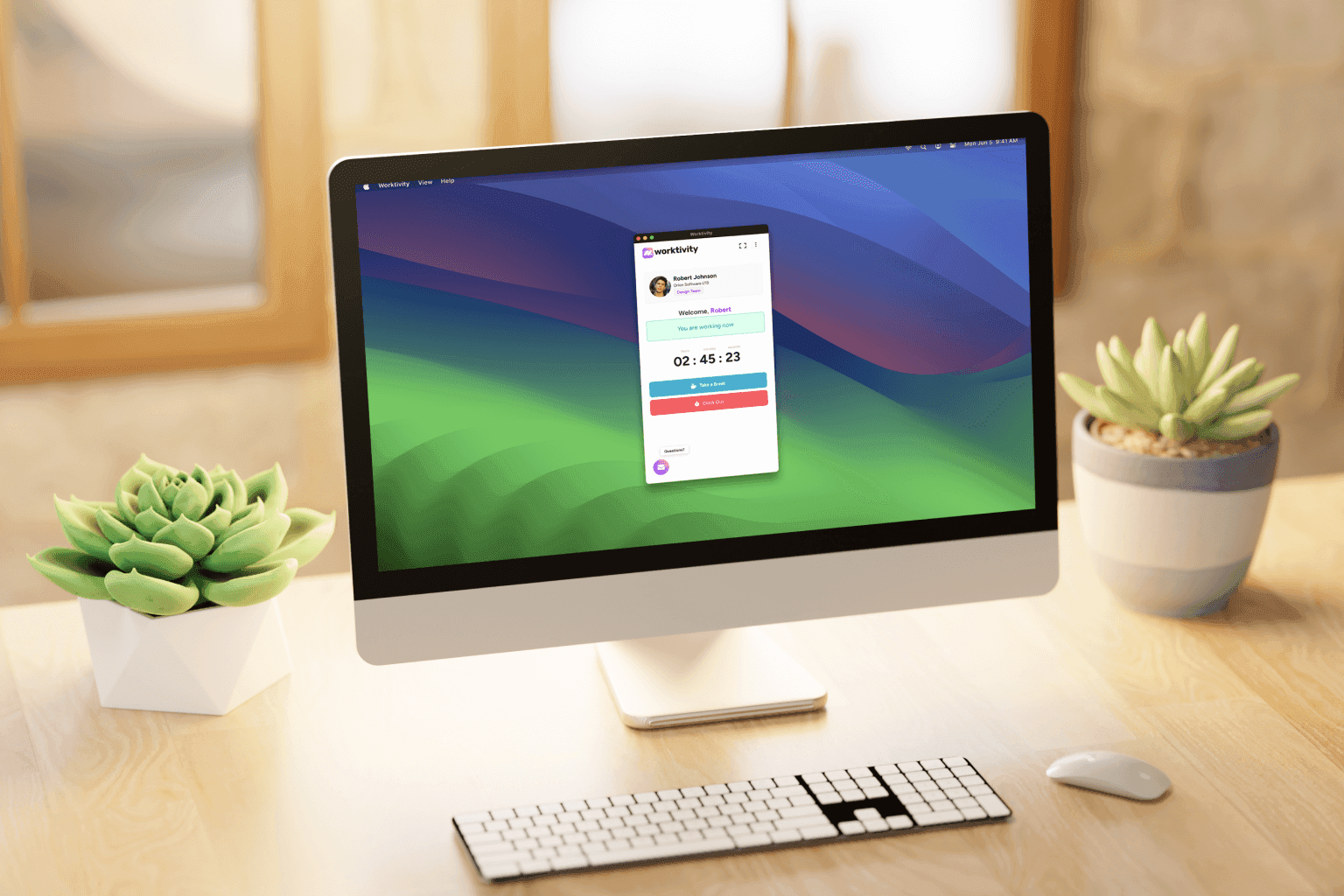
People clock in, and the desktop app records every minute of the shift as working, on a break or idle. Hours nobody could track are added as manual entries that a manager approves. The result is a timesheet that fills itself and holds up when someone asks where a number came from.
How time tracking works
The details that decide whether a timesheet can be trusted.
When does a minute count as idle?
When the computer goes longer than your threshold without keyboard or mouse input. The default is five minutes, and you can set anything from one to sixty.
What if someone forgets to clock in?
They add a manual time entry with a reason, and it waits until someone with a manager role or above approves it. The Microsoft Store and Mac App Store apps can also start the shift automatically when they open.
What about meetings and calls?
Work notes, and a list of applications that always count as working, keep that time out of idle.
Which apps can record time?
The desktop app on Windows, macOS and Linux, the Chrome extension and the mobile app. They share one account and one timesheet, and a shift runs in only one of them at a time.
How do we get the hours out?
Timesheet and Work times export to Excel on plans with data export, and the payroll calculator turns the same minutes into pay.
What your team gets out of it
No timesheets to fill in
Time is recorded as it happens, not reconstructed at the end of the week.
Idle and break kept apart
Work, break and idle each have their own total, so a long day and a busy day are not confused.
One record for pay and billing
Payroll and billable amounts come from the same minutes.
How teams put it to use
Time tracking is where most teams start. The rest of Worktivity builds on these records.
Set working days and targets
Expected hours make late clock-ins and short days measurable.
Approve manual entries weekly
A short queue each week keeps the timesheet complete.
Export for payroll
Close the month from the timesheet or the payroll calculator.

What it does not do
Three limits people ask about.
It does not record outside the shift
Nothing is recorded before clock-in or after clock-out.
A locked screen records nothing
While the screen is locked no minute is sent. That time is absent, not idle.
It has no overtime rules
The timesheet shows hours against the daily target, but there is no separate overtime calculation.
Teams that get the most out of it
Any team that pays, bills or plans by the hour.
Agencies and consultancies
Billable hours per client.
Outsourcing and BPO
Shift hours per client team.
Software companies
Engineering time per project.
Customer support
Shift and break times for agents.
Accounting and legal firms
Hours per client file.
Small businesses
Payroll from recorded hours instead of paper.
Other solutions worth a look
Every solution shares the same platform, so running two of them together needs no extra setup.
Cost Management
Pay rates, billable amounts, payroll and customer invoices from tracked time.
Learn moreLeave Management
Leave requests, balances, approvals and carry-over in the same tool as your hours.
Learn moreTeam Productivity
See how the team's working time splits between productive, neutral and unproductive work.
Learn more
Let the timesheet fill itself
Install the desktop app, invite the team and read the first timesheet the same day.
No credit card required